Contact Form 7 is one of the most popular WordPress form plugins, trusted by millions of websites for its lightweight design, flexibility, and ease of use. However, its popularity also makes it a common target for spambots, making effective Contact Form 7 Spam Protection essential for maintaining secure and reliable form submissions.
If you’ve ever opened your inbox to find fake names, gambling links, “SEO services,” or phishing attempts, you already know how frustrating spam can be. Beyond being a nuisance, it wastes valuable time, clutters your database, and can cause genuine customer inquiries to get buried under unwanted submissions.
For many website owners, Google reCAPTCHA is the first solution that comes to mind. While it can reduce spam, it also comes with trade-offs, including slower page loads, added friction for legitimate visitors, accessibility concerns, and increased reliance on third-party tracking.
The good news is that you don’t have to choose between a spam-free website and a smooth user experience. This guide explains why Contact Form 7 attracts spambots, why reCAPTCHA isn’t always the best option, and how field-level filtering techniques—along with a plugin that automates them—can stop spam before it ever reaches your inbox, without puzzles, checkboxes, or unnecessary friction.
What Is Contact Form 7 Spam?
Contact Form 7 spam is any submission generated by an automated bot rather than a real visitor. Bots crawl the web looking for unprotected forms, then flood them with junk: fake names, throwaway email addresses, gambling and adult content links, SEO pitches, scam offers, and sometimes malware URLs.
A quick comparison:
|
Real Submission |
Bot Submission |
|
|
Name |
John Smith | Free SEO |
|
|
john@example.com | spam123@example.xyz |
|
Message |
“I need help redesigning my business website.” | “Visit this amazing casino site for guaranteed profits.” |
One or two spam messages a week is manageable. Hundreds is a problem — and that’s exactly what unprotected forms attract.
Why Contact Form 7 Spam Protection Is Important
It’s easy to dismiss spam as a minor nuisance, but it quietly affects several parts of your business:
- Wasted time — every fake submission still needs a human glance to confirm it’s junk.
- Server load — each submission triggers PHP execution, database writes, and email sends, even if it’s spam.
- Database bloat — thousands of junk entries make backups slower and storage costs higher.
- Buried inboxes — real customer messages get lost between spam notifications.
- Lower team productivity — support staff spend time filtering instead of responding to real leads.
- Security exposure — some submissions carry phishing links or malicious URLs that are just one careless click away from causing real harm.
For agencies managing multiple client sites, this problem multiplies fast.
Why Many Website Owners Want to Avoid reCAPTCHA
reCAPTCHA has been the go-to spam blocker for over a decade, but it’s increasingly seen as a blunt instrument. Here’s why:
- Friction for real users — clicking through traffic lights and crosswalks isn’t why someone visited your site.
- Accessibility issues — visual/cognitive challenges can make CAPTCHA genuinely hard for some users.
- Slower load times — extra external scripts add to page weight, especially noticeable on slow connections.
- Privacy concerns — reCAPTCHA tracks user behavior to make its human/bot decision, which some businesses would rather avoid for compliance reasons.
- Mobile friction — CAPTCHA challenges are noticeably more annoying to complete on a phone.
The good news: modern spam protection has moved past “prove you’re human” and toward “tell us what a real submission from your customers actually looks like.” That’s a smarter, more targeted approach — and it’s what the rest of this guide covers.
Best Contact Form 7 Spam Protection Methods Without reCAPTCHA
Instead of challenging every visitor with a puzzle, you can validate the content of each submission against rules that fit your business. Here’s how.
1. Filter by Name
Spambots reuse the same fake names over and over — “Admin,” “SEO Expert,” “Free Traffic,” “Casino Team.” A simple allow/block list on the Name field catches this instantly.
- Block list example: SEO, Casino, Crypto, Admin, Support Team
- Allow list example: John, David, Michael, Sarah
2. Validate Email Addresses
Bots frequently use disposable or suspicious domains (mail.ru, tempmail.com, 10minutemail.com). You can:
- Allow only trusted domains (e.g., gmail.com, outlook.com, your own company domain)
- Block known throwaway/spam domains
3. Filter Phone Numbers by Country Code
If you only serve customers in specific countries, there’s no reason to accept phone numbers from anywhere else.
- Allow: +1, +44, +61
- Block: Block only the country codes or regions you don’t want to receive submissions from, or create an Allow List for the locations you serve.
4. Control Country and Location Fields
For local or region-specific businesses, restrict submissions to the countries or regions you actually serve. This alone eliminates a huge share of international spam.
5. Restrict Website URL Fields
Most contact forms don’t need a “website” field at all — and it’s one of the most common vectors for injected spam links (gambling, adult content, cheap SEO offers, malware). Disable it, or block link submissions entirely, unless your business genuinely needs it.
6. Validate Dropdown Selections
Dropdowns for “Service,” “Budget,” or “Inquiry Type” should only accept your predefined options. Bots that submit arbitrary values get rejected automatically.
Why This Beats Basic Protection
Most anti-spam setups rely on just CAPTCHA, a honeypot field, or basic JavaScript checks. These stop some bots but don’t look at what was actually submitted. A message like:
Name: Free SEO | Email: spam@spam.com | Phone: +999999999 | Message: Buy backlinks here…
…can still sail through a honeypot or CAPTCHA check. What actually stops it is content-based validation — checking the real values in each field before the form is even processed.
Introducing NP FormShield
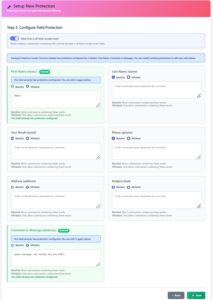
NP FormShield is a WordPress anti-spam plugin designed to provide advanced Contact Form 7 Spam Protection through intelligent field-level filtering. Instead of challenging visitors with CAPTCHA puzzles, it lets you define what’s allowed and what’s blocked in each form field—quietly, in the background, without disrupting the user experience.
How It Works
Every supported field gets its own Allow List and Block List. You just type comma-separated values and save.
| Field |
Example Allow |
Example Block |
|
Name |
John, David, Sarah | SEO, Casino, Crypto |
|
|
gmail.com, outlook.com | mail.ru, tempmail.com |
|
Phone |
+1, +44, +61 | +91, +234, +880 |
|
Country |
US, CA, UK, AU | RU, NG |
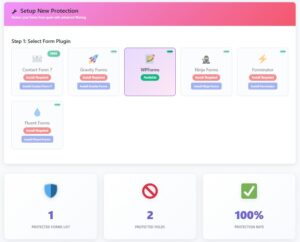
Plugin Compatibility
NP FormShield works with the most popular WordPress form builders, so you don’t have to switch tools:
Key Benefits
- No Google reCAPTCHA required
- Smoother experience for genuine visitors
- No coding needed — simple allow/block rules
- Country, email, and phone code filtering
- Keyword and URL blocking
- Lightweight — reduces unnecessary server processing
- Works across multiple form plugins
How to Set Up NP FormShield for Contact Form 7
Step 1 — Install the plugin
- Free version: https://wordpress.org/plugins/needsplugin-formshield/
- Official product page: https://needsplugin.com/products/np-formshield
Activate it from your WordPress dashboard like any other plugin.
Step 2 — Open the NP FormShield dashboard You’ll find filtering controls for Name, Email, Phone, Country, Location, Website URL, Dropdowns, and custom text fields — each with its own Allow List and Block List.
Step 3 — Configure your rules Think about who your real customers are. If your agency only serves the US and Canada, allow just those countries and block the rest. If your form never needs a website URL, disable that field.
Step 4 — Test before going live Submit a few test entries:
- A normal, legitimate inquiry
- A blocked keyword
- A blocked country
- A blocked email domain
- A blocked phone code
Confirm real submissions pass through and spam gets rejected — then you’re done.
Real-World Examples
Digital Marketing Agency — Allows only US-based submissions, blocks website URLs and common spam keywords, allows trusted email domains only. Result: spam drops sharply, freeing the team to focus on real leads.
Local Service Business (e.g., a plumbing company) — Allows only submissions mentioning their actual service area, blocking everything else. Result: only genuine local customers get through.
Law Firm — Blocks keywords like “Guest Post,” “SEO,” “Backlink,” “Casino,” and “Crypto.” Result: inbox stays focused on real legal consultations.
Healthcare Clinic — Filters spam silently in the background instead of adding CAPTCHA friction. Result: smoother booking experience for patients, cleaner inquiries for staff.
NP FormShield vs Google reCAPTCHA
|
Feature |
NP FormShield |
Google reCAPTCHA |
|
No CAPTCHA challenges |
✅ |
❌ |
|
Better user experience |
✅ | ⚠️ |
| Country filtering | ✅ |
❌ |
|
Email filtering |
✅ | ❌ |
| Phone number validation | ✅ |
❌ |
|
URL blocking |
✅ |
❌ |
|
Field-by-field rules |
✅ |
❌ |
|
Easy setup |
✅ |
✅ |
|
No coding required |
✅ | ✅ |
| Filters before form processing | ✅ |
❌ |
reCAPTCHA is still useful for verifying “is this a human,” but it doesn’t control what that human — or bot — is allowed to type. NP FormShield fills that gap, and for many sites, replaces CAPTCHA entirely.
Best Practices for Preventing Contact Form Spam
- Keep WordPress and all plugins updated.
- Review your Allow/Block Lists periodically — spam trends change.
- Block known temporary/disposable email providers.
- Restrict countries if you only serve specific regions.
- Disable fields you don’t actually need (like Website URL).
- Use dropdowns with fixed, meaningful options.
- Re-test your form after every major update.
- Combine multiple filtering methods rather than relying on just one.
Common Mistakes to Avoid
- Blocking too aggressively — overly strict rules can accidentally reject real customers.
- Skipping testing — always verify your rules before going live.
- Ignoring evolving spam tactics — revisit your keyword and domain lists regularly.
- Relying on a single method — CAPTCHA or keyword filtering alone leaves gaps; layering methods works better.
Frequently Asked Questions
Can I stop Contact Form 7 spam without Google reCAPTCHA?
Yes. Keyword filtering, email validation, country restrictions, and field-level rules can significantly cut spam without any CAPTCHA challenge.
Does NP FormShield work with Contact Form 7?
Yes — it fully supports Contact Form 7 along with several other popular WordPress form plugins.
Which form plugins are supported?
Contact Form 7, WPForms, Fluent Forms, Gravity Forms, Ninja Forms, and Forminator.
Do I need coding knowledge to use it?
No. It’s designed for non-technical users with a simple dashboard interface.
Can I allow submissions from only one country?
Yes — you can build Allow Lists or Block Lists using country names or country codes.
Can I block specific email domains?
Yes — you fully control which domains are accepted or rejected.
Does it affect website speed?
No — it’s lightweight and avoids external CAPTCHA scripts, which often improves load times.
Is there a free version?
Yes, available through the WordPress Plugin Directory, with a Pro version for more advanced use cases.
Final Thoughts
Spam doesn’t just clutter your inbox — it wastes time, drains server resources, and makes it harder to spot real customer inquiries. Google reCAPTCHA isn’t your only defense against it. Field-level validation gives you precise control over what gets submitted, without adding friction for genuine visitors.
If you’re looking for a flexible, plugin-agnostic solution, NP FormShield offers keyword filtering, email validation, country restrictions, phone number filtering, URL blocking, and customizable Allow/Block Lists — all without a single CAPTCHA puzzle.
Install NP FormShield today and protect your WordPress forms with smarter field-level filtering—no CAPTCHA, no coding, and no unnecessary friction for your visitors.